SwissBuildings3D (von SwissTopo)
To use the SwissBuildings3D data (which you can download for free), please, follow the instructions below.
| ❑ | Warnung: The merging tool offers a relatively basic merging functionality and was not designed for merging 3d-meshes like the ones present in SwissBuildings3D-data. This tool usually yields acceptable results for simple buildings; for complex ones, you might have to do some manual work to improve the results. |
Importing, merging and assigning types and attributes
[This is a preliminary draf and should be revised (simplified).]
For simplicity and convenience, the following instructions assume that the project is initially empty. (When done, you can use copy-paste to put the resulting elements to some existing project.)
|
- Import a SwissBuildings3D-file (available in DXF format) in an empty project. Right after importing the data, delete the imported-elements you don't need (doing this at this point will save considerable time). [As mentioned above, in new versions of this data, walls, roofs, etc. are separated. It's very convenient to start by importing walls only. And note that you should not need to import the floors.]
- Select all the imported elms you kept and change their type to "Slab"/"Platte"/"Dalle".
[Save a 1st version of this project at this point, so that you can re-start from this state in case you need to.]
- Merge the selected slabs (see cleanup tool Ausgewählte zusammenfügbare Elemente zusammenfügen) using the following options:
- only elms of type Obstacle/Hindernis;
- check the option standardization: before starting, convert vertical XYZ-only ... to ... XYZH ...;
- only merge elms having at least one vertex with H≥: ~0.3 m;
- max. dist/error: ~0.1 m.
Note that if the names of the imported elements contain hints about their function in the building (e.g. "floor", "roof", "walls"), this information can be used to only select the elements intended to act as building-walls before for this merging operation.
[This operation can take long (several seconds per building).]
- Appropriately assign type "House" and important attributes by doing the following:
- unselect all elements and select only slabs with highest H≥0.3 (see cleanup option) [if you used the hints in the element-names indicating the function of the element in the building, and you already have selected the elements that act as a wall, you can of course skip this sub-step];
- change the type of selected elms to "House".
- A convention used in SwissBuildings3D data is to "vertically extend" the walls 3m beneath the terrain surface.
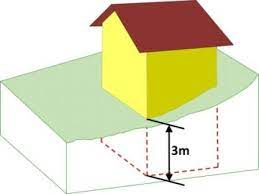
In SwissBuildings3D data, the walls are vertically extended 3m beneath the terrain surface.
[Image from the SwissTopo's SwissBuildings3D documentation.]A simple way to handle this is to use the tool to edit props. of all selected to
- uncheck option "adapt terrain to this elm" and
- set the "pedestal"/"Sockel" to 3m; actually, if you need a very accurate model, you might want to set each pedestal to 3m plus the actual pedestal-height, at least do for buildings with a high pedestal.
[Save a 2nd version of this project at this point (as a backup).]
❑ Anmerkung: Keep in mind that, with this approach, buildings don't provide topographic information at all; make sure your project has sufficient topographic information near such buildings. - unselect all elements and select only slabs with highest H≥0.3 (see cleanup option) [if you used the hints in the element-names indicating the function of the element in the building, and you already have selected the elements that act as a wall, you can of course skip this sub-step];
Additional cleanup steps
The following cleanup is quite important, as, in particular, the auto-input of facade-recs will only work for projects with "clean" buildings.
- cleanup building-elems (handle "problematic" buildings):
- Select (might need to correct or remove) very small building-elms (use cleanup tool).
- Select (might need to correct) unclosed buildings-elms (use cleanup tool).
- Building-elms xy-inside other building-elms might be inconvenient (e.g. auto-input of receivers will not add receivers on them, and WT calculations will have troubles with this), but the noise-calculation will work fine; you do not absolutely need to "handle" them (but you will often need to add receivers manually).
- Adapting to the terrain/DTM is usually not needed for SwissBuildings3D data if you did/will add sufficient topography elements to the project (their tops should already be at the right height). But do make sure you did deactivate "adapt terrain to this elm" for the here imported buildings (as their bottoms are 3m too low). [Btw, if some of the buildings have problems (in their geometry), adapting them to the terrain can cause vertical "deformations" (to their geometry); thus, it's usually better not to use this functionality for SwissBuildings3D; if you want to adapt them, make sure you performed a very thorough cleanup and saved the project-state before performing this adaptation.]
- Ensure you did set the "pedestal"/"sockel" of the buildings as indicated above.
- Perform some visual checks (3D-viewer, profile-viewer); some additional cleanup is likely to be needed.
- optimize your project:
- For buildings far from the source, deactivate or delete the slabs [note that buffer selection functionality will be of help in this context].
- Make sure you do not make the roofs reflective (or at least don't make too many of them reflective: with many reflecting slabs, noise-propagation calculations will take extremely long).
Alternative building-modelling approach
An alternative to using SwissBuildings3D is to use AV-polygons and DOM-data. Use AV-polygons as buildings and adapt them first to the topography. Then, import DOM-Daten im ASCII-XYZ-Format (e.g. SwissSURFACE3D from Swisstopo) to define the heights of the (selected) buildings; see XYZ DOM Importieren. This leads to a model that is less detailed, but often more efficient.